


How to Find and Delete Duplicate Files on Android: 3 Ways
 973
973
 0
0


Duplicate files are files that are exactly identical, regardless of their file names. Generally, you need to keep only one file in a set of duplicates.
This article shows you how to find and delete duplicate files on Android using three different methods. One method is not necessarily better than the other. I will provide detailed information on each method, so you can compare them and choose the most suitable one.
 Cisdem Duplicate Finder
Easily Find Duplicate Files on Android
- Identify duplicate photos, videos, audio, documents and other files
- Identify similar images too
- Let you scan for all duplicates or only one type (e.g., duplicate photos) at a time
- Let you exclude folders of your choice from the scan
- Display duplicate files for you to conveniently view
- Automatically select all files but one for deletion in each set of duplicates, enabling you to remove all duplicates with a tap
- Let you adjust selections manually or choose from rules (e.g., Select newest)
- Easy to use for everyone


Is it safe to delete duplicate files on Android?
Unlike computers, which usually have big storage ranging from hundreds of gigabytes to several terabytes, Android devices often have less storage space. Therefore, every megabyte counts. You can clean up duplicate files (as well as other unnecessary files) on your Android device to free up space.
But is it safe to delete them? Let’s take a close look.
There are two types of duplicate files on Android.
- Duplicates of user-created files: Examples include copies of the same photo, video or document, multiple downloads of the same song or app installer, and a backup of your files. If you are sure that such duplicates are redundant, it's safe to delete them. (To free up space while still keeping the backup of your files, you can store the backup on your computer or an external hard drive instead of your Android device.)
- Duplicate files created by the Android operating system or installed apps: For example, app updates or reinstallation may create duplicate files. It's recommended to leave them as they are. (If you are tech-savvy and really sure such duplicates are not required for Android or your apps to function properly, you can remove them if you want.)
Method 1. How to find and remove duplicate files on Android with a duplicate file finder
A duplicate file finder for Android can automatically find duplicate images, videos, music files, and other files on an Android phone or tablet and provides features to help users quickly delete duplicates. This method is way much easier, quicker and more accurate than the manual method.
There are a number of Android apps to find duplicate files, and I’ve tested the top ones. Below you will find a list of duplicate file finders for Android (in the alphabetical order) and the reviews.
Cisdem Duplicate Finder
Cisdem Duplicate Finder supports all file types (like images, videos, audio files, and documents) and formats (like JPEG, PNG, MP3, MP4, and PDF). You can set it to find all duplicate files or a certain type (such as duplicate photos or audio files).
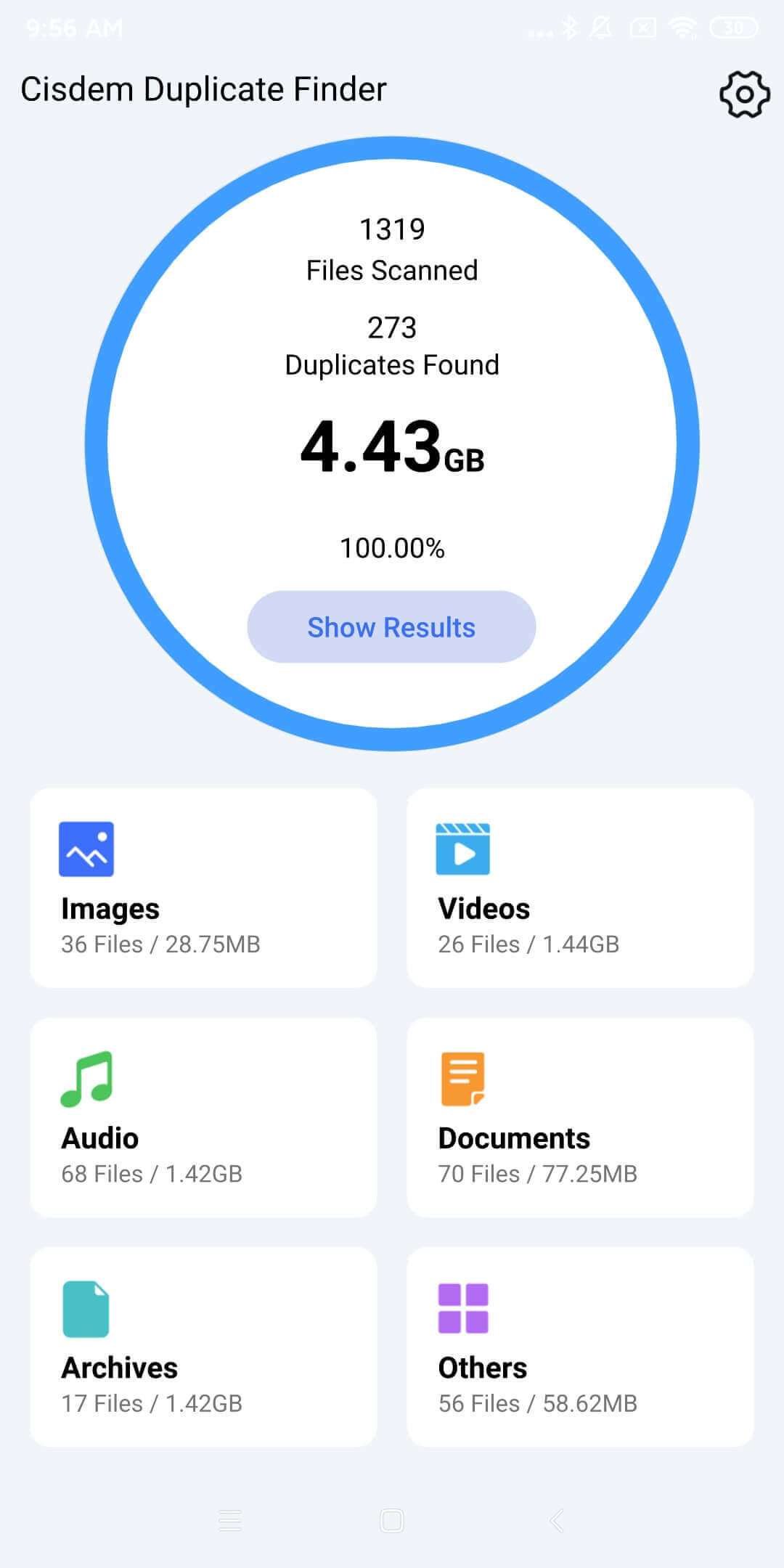
In addition, it’s capable of identifying similar photos, such as photos that look the same but have different formats or sizes, and photos that look similar. You can adjust the similarity threshold for comparing images.
Before you use this app to scan for duplicates files, you can tap the Settings icon in the top right corner to exclude system folders and app folders from scanning.
When the scan is finished, you can view the scan results. There are two choices. You can view all duplicate files in one place or view them in separately by file type.
By default, in each set of duplicate files, this app automatically selects all files but one for removal. And there are three rules available for you to customize the auto selection. If you tap the Manual Selection in the top right corner of the screen, all files will be deselected. If you want, you can manually select or deselect files.
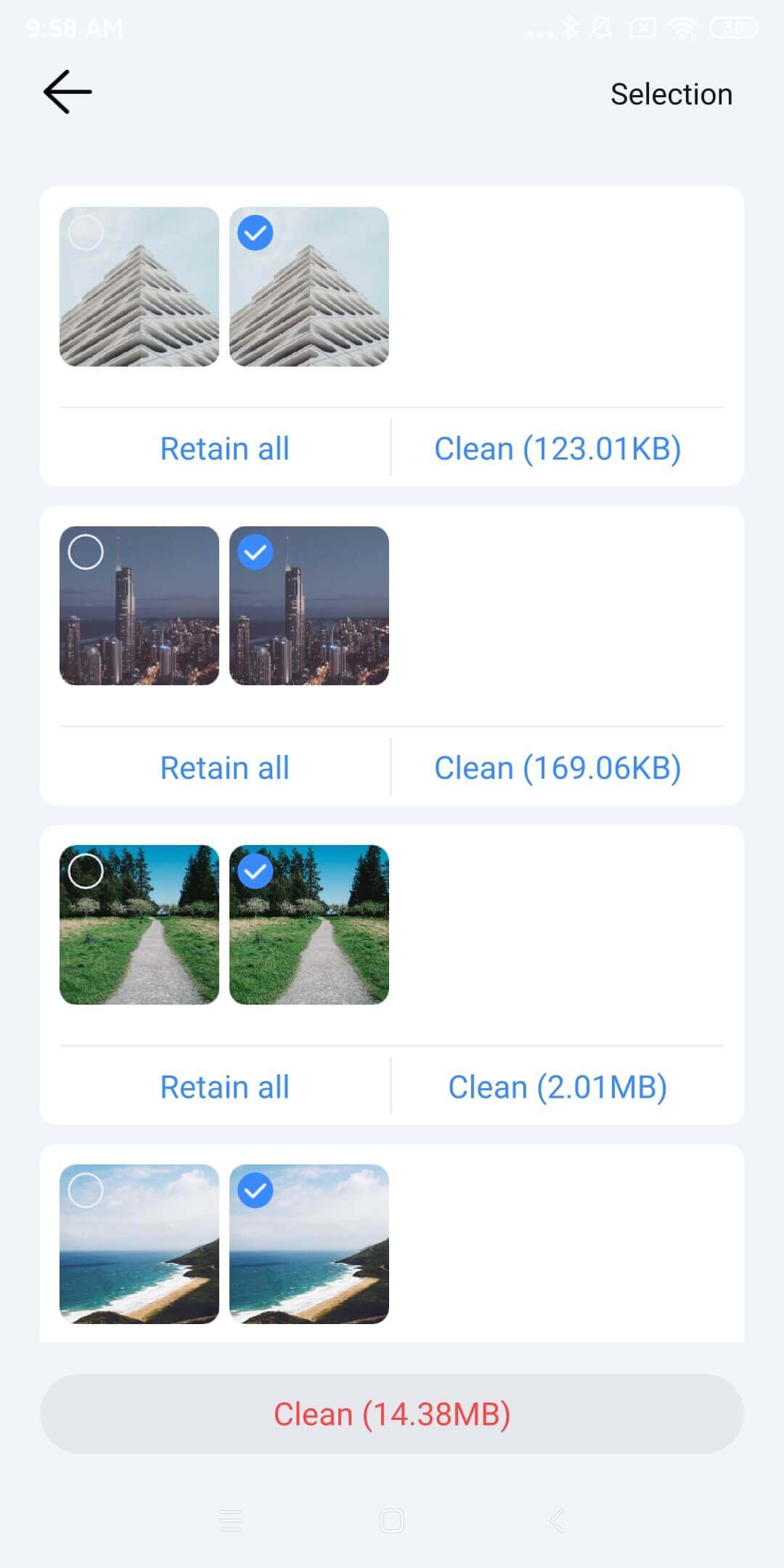
Once you are sure that all the unnecessary file duplicates are selected, you can tap the Clean button and then confirm the deletion. This will delete all selected files.
Pros
- Simple and easy-to-understand interface
- Provide high accuracy and speed
- Provide an extra benefit of helping you find and manage similar photos
- Offer enough customizability
Cons
- None
Duplicate Files Fixer
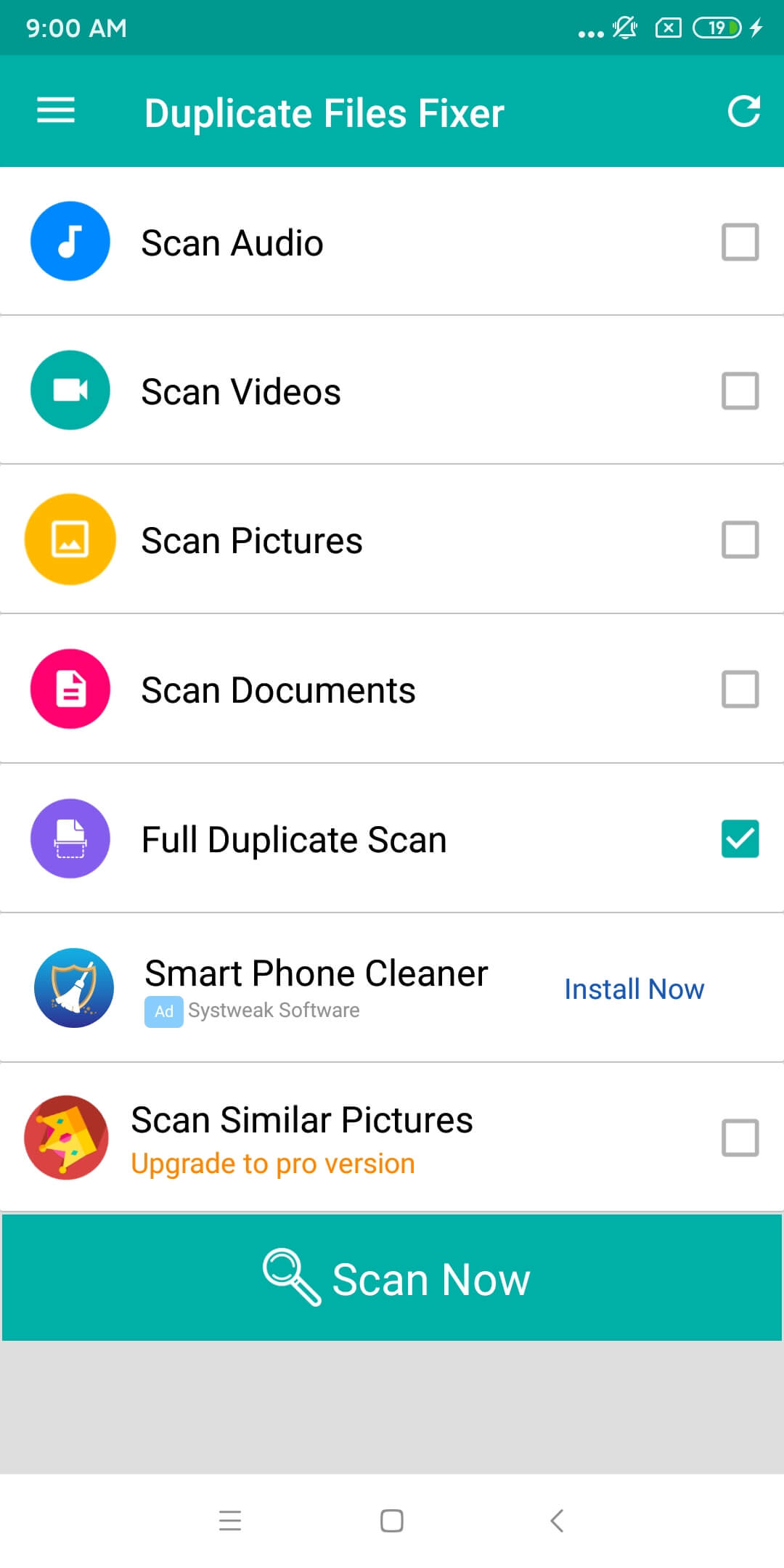
Duplicate Files Fixer’s Home screen provides the options for you to scan your Android device for all duplicate files or a certain type of duplicates. There’s also a Scan Similar Pictures option. But unlike Cisdem Duplicate Finder, it doesn’t allow you to customize the scanning of similar photos.
By default, this app only compares the content (and ignores the name) when it compares files to identify duplicates. But you can set it to only compare the name, which is, however, not recommended.
When the scan is done, you will be presented with a list of the detected duplicate files, with all duplicates being selected for deletion. If you are not happy with the auto selection, you can tap the three-dot icon in the top right corner and then choose Unmark All. You can do the selection by hand. Once you are satisfied with the selection, you can tap the Delete Now button.
Pros
- Intuitive and user-friendly interface
- Offer two ways to compare files
- Offer an additional feature to help you deal with similar images
- Offer a few customization options
Cons
- None
Duplicates Cleaner
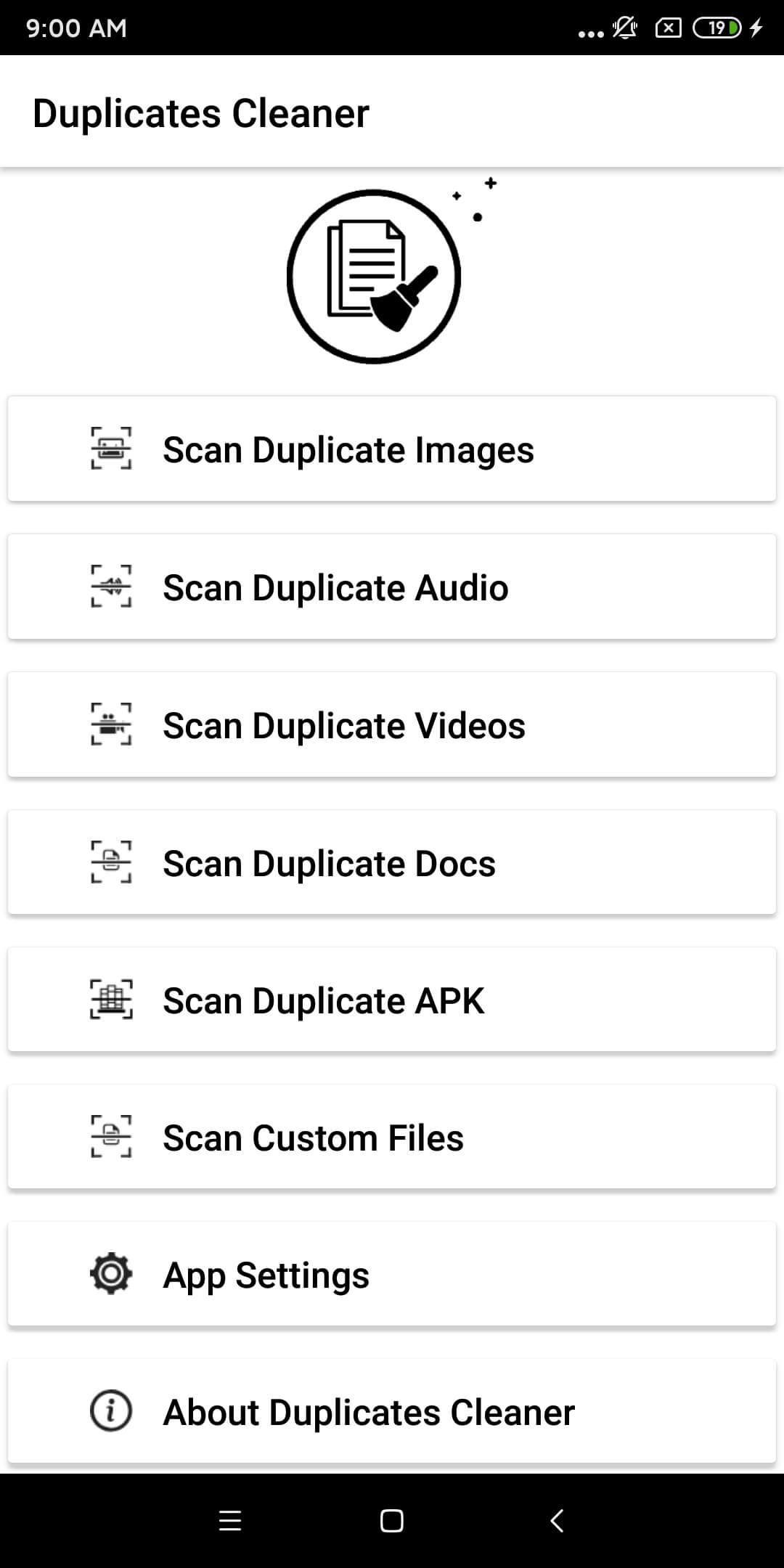
Duplicates Cleaner allows you to look for one type of duplicate files (such as duplicate audios or duplicate images) at a time. Unlike the two apps above, this app doesn’t offer a way to find all duplicate files on Android. But note that this is not necessarily a disadvantage.
Before you use this app to scan for duplicates, you can set it to ignore small files or large files if needed. This can help reduce the time the scan will take.
It totally offers three ways to compare files: comparing the content (default), comparing the name, or comparing both the name and the size. The default way is recommended.
By default, Duplicates Cleaner automatically selects all duplicate files (for users to quickly delete with a single click). If you prefer to manually select duplicates for removal, you can go to the app’s settings to turn off the auto selection feature.
Pros
- Simple interface
- Provide three ways to compare files
- Allow you to exclude certain files
Cons
- No option to find all duplicate files
Remo Duplicate File Remover
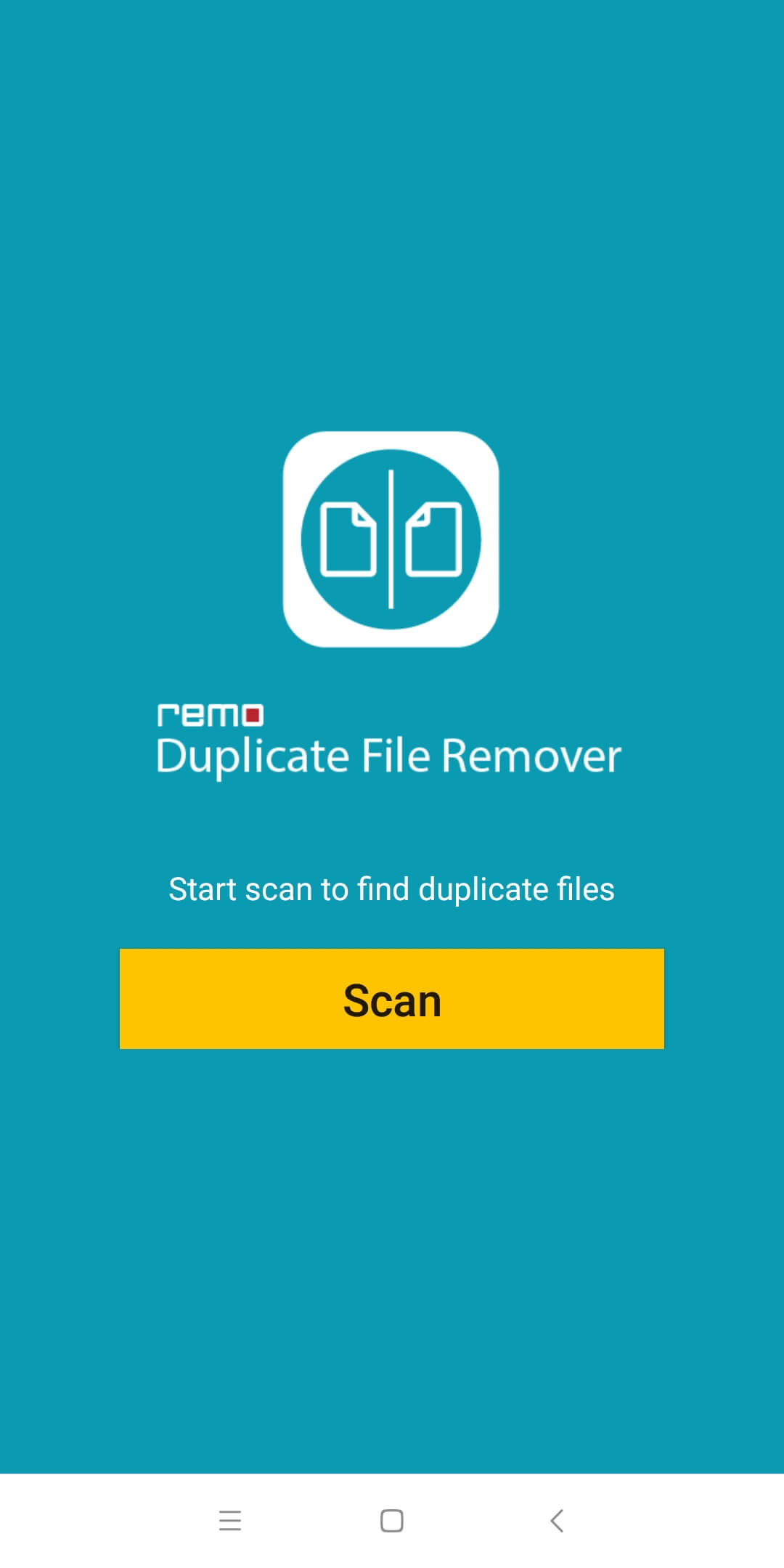
Among the apps that I’ve tested, Remo Duplicate File Remover is the least customizable. But this doesn’t necessarily mean it’s not a good duplicate file finder. If you prefer simple apps, you may like this app.
When you open Remo Duplicate File Remover, you will be presented with a Scan button. Simply clicking this button will start looking for duplicate files on your Android device.
When the scan is complete, a Scanning Completed message will appear, telling you the number of duplicate files that have been found.
This app doesn’t allow you to view all duplicate files in one place, but you can conveniently view the scan results separately by file type. Since all duplicates are automatically selected for removal, if you want, you can simply click the trash bin icon to get rid of all duplicates.
Pros
- Simple interface
Cons
- No customization is allowed
General steps to use a duplicate file finder for Android
With different apps, the steps can be slightly different. Therefore, this article only provides general steps on how to use such an app.
Step 1. Install the app from Play Store. Open it.
Step 2. Allow the permission the app needs to work properly.
Step 3. Optionally, if (available and) needed, you can customize the settings. For example, you can set the scan to exclude important folders, such as system folders or your backup folder.
Step 4. Tap Scan button or a similarly named button.
Step 5. Once the scan is done, you can view the scan results and select redundant file duplicates. If there’s auto selection, you can check if it’s properly done, you can manually adjust the selection if needed.
Step 6. Tap the Delete button (or icon) or a similar button (or icon).
Now duplicate files are removed from your Android device.
Method 2. How to find and delete duplicate files with a file manager
The fact is that certain file manager apps for Android (like Files by Google and My Files by Samsung) have the feature to help users deal with duplicate files.
Use Files by Google
If Files doesn’t come with your Android phone, you can install it from Play Store.
Step 1. On your Android phone or tablet, open Files.
Step 2. Tap the three-line icon in the top left corner of the screen.
Step 3. Tap Clean.
Step 4. In the Delete duplicates section, tap Select files.
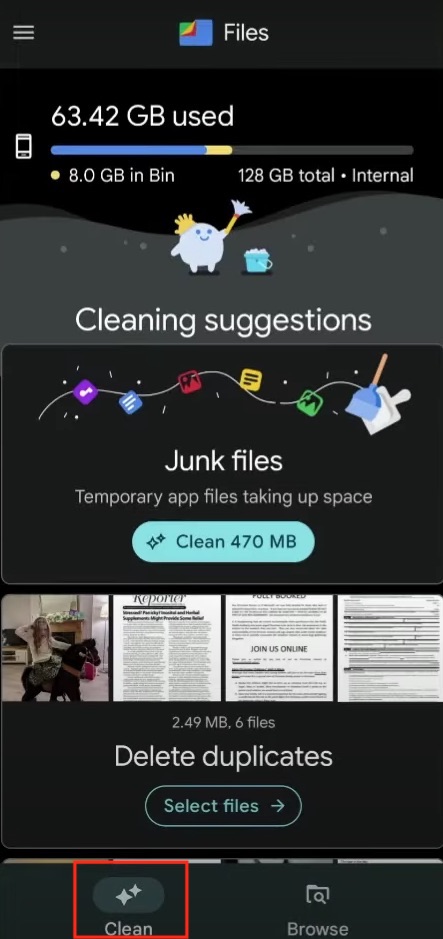
Step 5. In each set of duplicates, Files labels the original files as Original, so you can simply select the rest for deletion.
Step 6. When you finish selecting, tap the Move to Trash button.
Now the duplicate files are moved Trash in Files and will stay there for 30 days. Note that merely moving these files to Trash doesn’t delete them on your Android device. If you want to completely delete these files immediately, you need to delete them in Trash.
Important: If the Delete duplicates section doesn’t show up, try waiting. Files by Google may take a while to detect duplicates on Android. You may need to wait for a few days or weeks or even longer. If you really need to get rid of those duplicates at the moment, you can use a different method.
Use My Files by Samsung
My Files by Samsung comes with Samsung devices. If you are using a non- Samsung Android device, you can try installing My Files from Play Store. If it’s compatible with your device, then you can use it.
Step 1. On your device, open My Files.
Step 2. Tap Analyze storage.
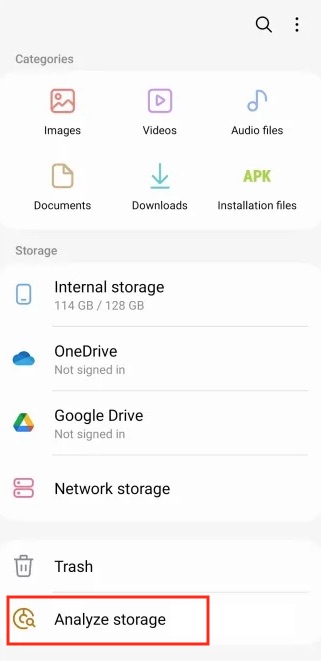
Step 3. In the Analyze storage screen, tap Duplicate files.
Step 4. Select all the duplicates that you want to remove.
Step 5. Tap Delete in the bottom right corner.
Method 3. How to manually find duplicate files on Android
If there aren’t many files on your Android device and you believe that only a few of the files have duplicates, you can actually get the job done by hand. (If your device does have a built-in app to help you handle such files, using this app is certainly a better choice.)
With this method, you need to use the default file manager on your Android device. Mine is called File Manager, and I use it as an example to show you how this method works.
Step 1. Open File Manager.
Step 2. File Manager allows users to view files by file type, like Docs, Videos and Images.
Step 3. Choose the file type of your choice.
Step 4. Tap the three-dot icon in the top right corner and then choose Sort by.
Step 5. Choose the sort order that helps make it easier for you identify duplicates.
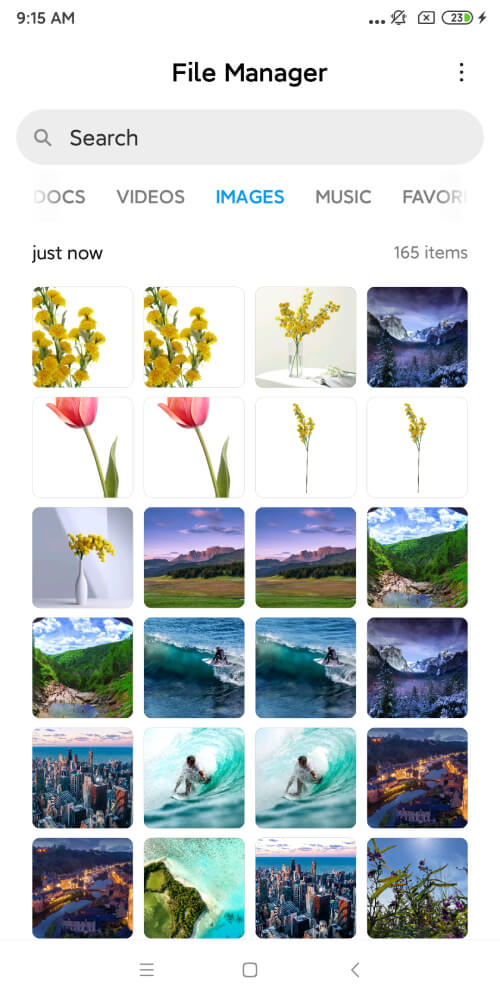
Step 6. In each set of duplicate files, select the item that you want to get rid of by tapping it.
Step 7. Tap Delete.
Conclusion
This article talks about how to delete duplicate files on Android in different ways. You are lucky if your Android device comes with a file manager app that helps you deal with duplicate files. If there isn’t a built-in solution, third-party solutions are available to help. There are duplicate file finder apps available for Android, including free ones. Therefore, a quick and easy way to get rid of those unnecessary files is available for every Android user. If you prefer not to use an app, you can get the job done manually. But the manual way is not recommended if there are lots of files on your device.

With a passion for tech and writing, Sarah joined Cisdem, where she focuses on creating articles about using utility tools to enhance file management and simplify contact management.

Adrian Li is Cisdem’s Chief Engineer and serves as the editorial advisor for Duplicate Finder and ContactsMate. His work and insights have been featured in leading tech publications such as Fossbytes, TUAW, Redmond Pie, SafetyDetectives, and BestForAndroid.